




Think You're Finished Editing? Five Things to Check Before You Press Print
23 June, 2011
It happens to everyone. You think you've finished your work, so you send a document to the printers or email it to your client. One problem: you actually weren't quite done and major embarrassment is on the way.
If you're working in MS Word, here's a checklist of five things you should review before you press print:
1. Update the Table of Contents
The last changes you made may have moved items from one page to another. If your document includes an automatically generated Table of Contents, right-click on it and choose "Update field". Do the same for any lists of tables or figures.
2. Update References
In MS Word, references are fields such as footnotes, table headers and cross-references. The editing process may have changed the order of tables, figures or other references. So it's important to be aware that not all references update automatically. To update all references, type Ctrl-A to select the entire document, then type F9. This will also update the Table of Contents and other automatically generated lists.
3. Accept Tracked Changes and Remove Comments
If you're working with somebody else, you probably want to leave tracked changes and comments on so that your changes are visible. However, if the document is about to go to press, it's all too easy to forget to accept all changes. The way to do this varies depending on your version of MS Word. Instructions are available for Word 2007 and above.
4. Make a Table of Abbreviations
Not all documents require a Table of Abbreviations. However, if you haven't done one, ask yourself whether that's because it takes too long or because it's genuinely not useful. The fact is that a Table of Abbreviations is almost always helpful to your reader. Despite this, in a random test we found that less than two percent of documents over 1500 words actually include a Table of Abbreviations.
Word doesn't have a feature to assist with this. However, if you're using PerfectIt then it will scan your document for abbreviations and their definitions, and automatically generate a Table of Abbreviations at the click of a button.
5. Convert Two Spaces to One at the End of Sentences
For those of us who were brought up typing two spaces at the end of each sentence, it's very hard to accept that this is wrong. But it is. Search your document for a full stop followed by two spaces to make absolutely sure that none have been left.
There's an Easier Way
With PerfectIt, there's no need to remember this checklist. When it's finished looking for errors in text, it displays a screen with an option to run each of these tasks at the touch of a button.
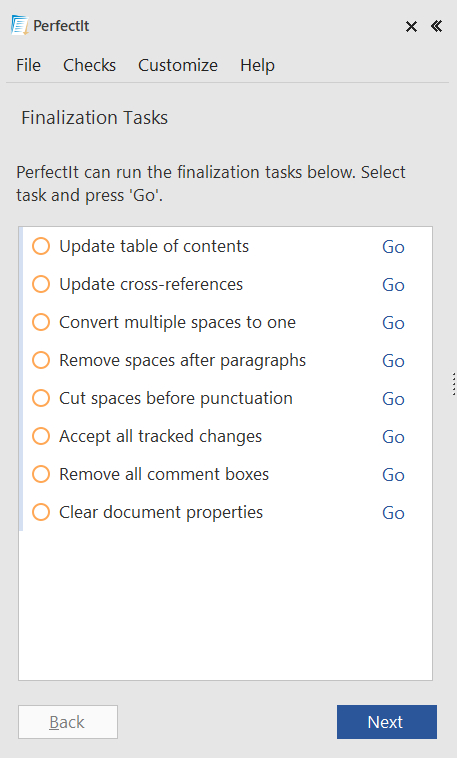 Figure 1: PerfectIt presents options to finalize your document
PerfectIt is available for PCs with MS Word. It's free to try and runs checks for consistency of hyphenation, capitalization, bullet punctuation, abbreviations and many other difficult to locate errors.